# News search and recommendation tutorial - applications, feeding and querying
[](/en/learn/tutorials/news-2-basic-feeding-and-query.html.md "View as Markdown")
This is the second part of the tutorial series for setting up a Vespa application for personalized news recommendations. The parts are:
1. [Getting started](news-1-deploy-an-application.html)
2. [A basic news search application](news-2-basic-feeding-and-query.html) - application packages, feeding, query
3. [News search](news-3-searching.html) - sorting, grouping, and ranking
4. [Generating embeddings for users and news articles](news-4-embeddings.html)
5. [News recommendation](news-5-recommendation.html) - partial updates (news embeddings), ANNs, filtering
6. [News recommendation with searchers](news-6-recommendation-with-searchers.html) - custom searchers, doc processors
7. [News recommendation with parent-child](news-7-recommendation-with-parent-child.html) - parent-child, tensor ranking
8. Advanced news recommendation - intermission - training a ranking model
9. Advanced news recommendation - ML models
In this part, we will build upon the minimal Vespa application in the previous part. First, we'll take a look at the [Microsoft News Dataset](https://msnews.github.io/) (MIND), which we'll be using throughout the tutorial. We'll use this to set up the search schema, deploy the application and feed some data. We'll round off with some basic querying before moving on to the next part of the tutorial: searching for content.
For reference, the final state of this tutorial can be found in the [app-2-feed-and-query](https://github.com/vespa-engine/sample-apps/tree/master/news/app-2-feed-and-query) subdirectory of the `news` sample application.
## The Microsoft News Dataset
During these tutorials, we will use the [Microsoft News Dataset](https://msnews.github.io/) (MIND). This is a large-scale dataset for news recommendation research. It contains over 160.000 articles, 15 million impressions logs, and 1 million users. We will not use the full dataset in this tutorial. To make the tutorial easier to follow along, we will use the much smaller DEMO part containing only 5000 users. However, readers are free to use the entire dataset at their own discretion.
The [MIND dataset description](https://github.com/msnews/msnews.github.io/blob/master/assets/doc/introduction.md) contains an introduction to the contents of this dataset. For this tutorial, there are particularly two pieces of data that we will use:
- News article content which contains data such as title, abstract, news category, and entities extracted from the title and abstract.
- Impressions which contain a list of news articles that were shown to a user, labeled with whether the user clicked on them or not.
We'll start with developing a search application, so we'll focus on the news content at first. We'll use the impression data as we begin building the recommendation system later in this series.
Let's start by downloading the data. The `news` sample app directory will be our starting point. The MIND dataset is hosted on [Hugging Face](https://huggingface.co/datasets/yjw1029/MIND) and requires a free account and acceptance of the dataset's terms of use.
### Accept the dataset terms
1. Log in at [huggingface.co](https://huggingface.co)
2. Go to the [MIND dataset page](https://huggingface.co/datasets/yjw1029/MIND)
3. Click **Agree and access repository** to accept the terms
### Create a Hugging Face access token
1. Go to [https://huggingface.co/settings/tokens](https://huggingface.co/settings/tokens)
2. Click **New token**, give it a name, select **Read** role, and copy the token
### Download the dataset
Set your token as an environment variable:
```
$ export HF_TOKEN=hf_your_token_here
```
Then run the download script from the **news** sample app directory:
```
$ ./bin/download-mind.sh small
```
The argument defines which dataset to download. Here, we download the `small` dataset, but `small` and `large` are valid options. Both the training and validation parts are downloaded to a directory called `mind`. Both `train` and `dev` datasets will be downloaded.
Taking a look at the data, in `mind/train/news.tsv`, we see tab-separated lines like the following:
```
N16680 travel traveltripideas The Most Beautiful Natural Wonder in Every State While humans have built some impressive, gravity-defying, and awe-inspiring marvels here are the most photographed structures in the world the natural world may have us beat. https://www.msn.com/en-us/travel/traveltripideas/the-most-beautiful-natural-wonder-in-every-state/ss-AAF8Brj?ocid=chopendata [] []
```
Here we see the news article id, a category, a subcategory, the title, an abstract, and a URL to the article's content. The last two fields contain the identified entities in the title and abstract. This particular news item has no such entities.
Note that the body content of the news article is retrievable by the URL. The dataset repository contains tools to download this. For the purposes of this tutorial, we won't be using this data, but feel free to download yourself.
Let's start building a Vespa application to make this data searchable. We'll create the directory `my-app` under the `news` sample app directory to contain your Vespa application:
```
$ mkdir -p my-app/schemas
```
## Application Packages
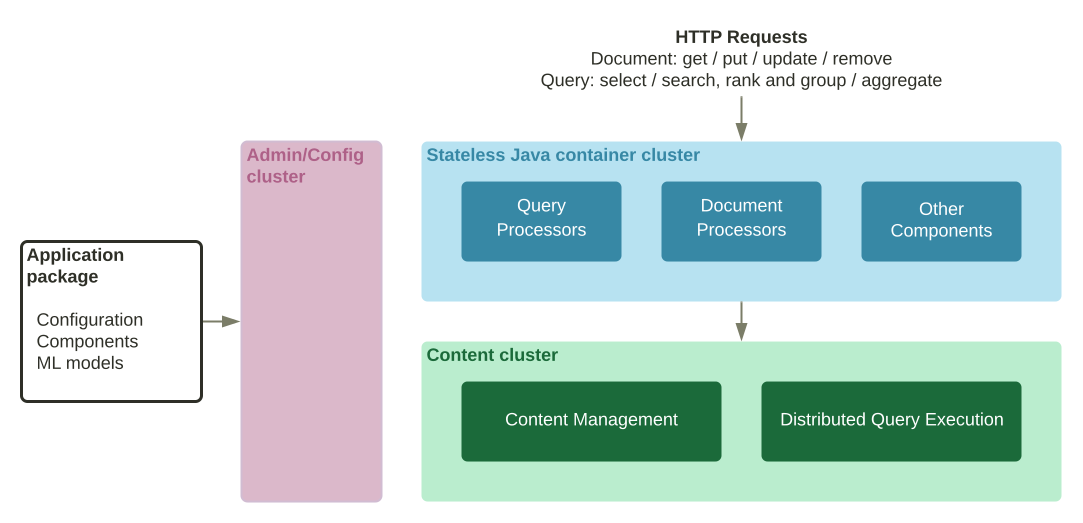
A Vespa [application package](../../basics/applications.html) is the set of configuration files and Java plugins that together define the behavior of a Vespa system: what functionality to use, the available document types, how ranking will be done and how data will be processed during feeding and indexing. The schema, e.g., `news.sd`, is a required part of an application package — the other file needed is `services.xml`.
We mentioned these files in the previous part but didn't really explain them at the time. We'll go through them here, starting with the specification of services.
### Services Specification
The [services.xml](../../reference/applications/services/services.html) file defines the services that make up the Vespa application — which services to run and how many nodes per service. Write the following to `news/my-app/services.xml`:
```xml
1
```
Quite a lot is set up here:
- `` defines the stateless [container cluster](../../applications/containers.html) for document, query and result processing
- `` sets up the [query endpoint](../../querying/query-api.html). The default port is 8080. See also [Securing Vespa with mutually authenticated TLS (mTLS)](https://blog.vespa.ai/securing-vespa-with-mutually-authenticated-tls/) for how to use mTLS with Vespa.
- `` sets up the [document endpoint](../../reference/api/document-v1.html) for feeding and visiting.
- `` defines the number of nodes for the service. (See the [reference](../../reference/applications/services/container.html) for more on container cluster setup).
- `` The stateful content cluster
- `` denotes how many copies to store of each document.
- `` assigns the document types in the _schema_ — the content cluster capacity can be increased by raising the node count — see [elasticity](../../content/elasticity.html). (See also the [reference](../../reference/applications/services/content.html) for more on content cluster setup.)
### Schema
In terms of data, Vespa operates with the notion of [documents](../../schemas/documents.html). A document represents a single, searchable item in your system, e.g., a news article, a photo, or a user. Each document type must be defined in the Vespa configuration through a [schema](../../basics/schemas.html). Think of the document type in a schema as similar to a table definition in a relational database - it consists of a set of fields, each with a given name, a specific type, and some optional properties. The data fed into Vespa must match the structure of the schema, and the results returned when searching will be in this format as well. There is no dynamic field creation support in Vespa, one can say Vespa document schemas are strongly typed.
The `news` document type mentioned in the `services.xml` file above is defined in a schema. Schemas are found under the `schemas` directory in the application package, and **must** have the same name as the document type mentioned in `services.xml`.
Given the MIND dataset described above, we'll set up the schema as follows. Write the following to `news/my-app/schemas/news.sd`:
```vespa-schema-language
schema news {
document news {
field news_id type string {
indexing: summary | attribute
attribute: fast-search
}
field category type string {
indexing: summary | attribute
}
field subcategory type string {
indexing: summary | attribute
}
field title type string {
indexing: index | summary
index: enable-bm25
}
field abstract type string {
indexing: index | summary
index: enable-bm25
}
field body type string {
indexing: index | summary
index: enable-bm25
}
field url type string {
indexing: index | summary
}
field date type int {
indexing: summary | attribute
attribute: fast-search
}
field clicks type int {
indexing: summary | attribute
}
field impressions type int {
indexing: summary | attribute
}
}
fieldset default {
fields: title, abstract, body
}
}
```
The `document` is wrapped inside another element called `schema`. The name following these elements, here `news`, must be exactly the same for both.
This document contains several fields. Each field has a [type](../../reference/schemas/schemas.html#field), such as `string`, `int`, or `tensor`. Fields also have properties. For instance, property `indexing` configures the _indexing pipeline_ for a field, which defines how Vespa will treat input during indexing — see [indexing language](../../reference/writing/indexing-language.html). Each part of the indexing pipeline is separated by the pipe character '|':
- `index:` Create a search index for this field.
- `attribute:` Store this field in memory as an [attribute](../../content/attributes.html) — for [sorting](../../reference/querying/sorting-language.html), [querying](../../querying/query-api.html), [ranking](../../basics/ranking.html) and [grouping](../../querying/grouping.html).
- `summary:` Lets this field be part of the [document summary](../../querying/document-summaries.html) in the result set.
Here, we also use the [index](../../reference/schemas/schemas.html#index) property, which sets up parameters for how Vespa should index the field. For the `title`, `abstract`, and `body` fields, we configure Vespa to set up an index compatible with [bm25 ranking](../../reference/ranking/rank-features.html#bm25) for text search.
## Deploy the Application Package
With the two necessary files above, we are ready to deploy the application package. Make sure it looks like this (use `ls` if `tree` is not installed):
```
my-app/
├── schemas
│ └── news.sd
└── services.xml
```
If not already done from the previous [news tutorial](news-1-deploy-an-application.html), set Vespa configuration variables. Use your tenant name from the [Vespa Cloud console](https://console.vespa-cloud.com/) instead of `tenant-name`:
```
$ vespa config set target cloud
$ vespa config set application tenant-name.news
```
Log in to Vespa Cloud:
```
$ vespa auth login
```
Add security credentials to the application package for data plane access:
```
$ vespa auth cert my-app -f
```
Finally, deploy the application package to Vespa Cloud:
```
$ vespa deploy --wait 600 my-app
```
## Feeding data
The data fed to Vespa must match the schema for the document type. The downloaded MIND data must be converted to a valid Vespa JSON [document format](../../reference/schemas/document-json-format.html) before it can be fed to Vespa:
```
$ python3 src/python/convert_to_vespa_format.py mind
```
The argument is where to find the downloaded data above, which was in the `mind` directory. This script creates a new file in that directory called `vespa.json`. This contains all 28603 news articles in the data set. This file can now be fed to Vespa. Use the method described in the previous part:
```
$ vespa feed mind/vespa.json
```
`vespa feed` reads a JSON array of document operations, or JSONL with one Vespa document JSON formatted operation per line. Once the feed job finishes, all our 65 238 documents are searchable, let us do a quick query to verify:
```
$ vespa query -v 'yql=select * from news where true' 'hits=0'
```
You can verify that specific documents are indexed by fetching documents by document ID using the [Document V1 API](../../writing/document-v1-api-guide.html):
```
$ vespa document -v get id:news:news::N10864
```
## The first query
Searching with Vespa is done using HTTP(S) GET or HTTP(S) POST requests, like:
```
/search?yql=select..&hits=1...
```
or with a JSON POST:
```json
{
"yql" : "select ..",
"hits" : 2
}
```
The only mandatory parameter is the query, using either `yql=` or `query=`. More details in the [Query API](../../querying/query-api.html).
Consider the query: `select * from news where default contains "music"`
Given the above schema, where the fields `title`, `abstract` and `body` are part of the `fieldset default`, any document containing the word "music" in one or more of these fields matches that query. Let's try that with either a GET query:
```
$ vespa query -v 'yql=select * from news where default contains "music"'
```
or a POST JSON query. The values can be found by using the previous `vespa query -v` command. The content type should be changed to `application/json`. It's also possible to use `vespa status` to find the url of your cloud instance. :
```
$ curl --key /path/to/key \
--cert /path/to/cert \
-H 'Content-Type: application/json' \
--data '{"yql" : "select * from sources * where default contains \"music\""}' \
'https://your-vespa-url.vespa-app.cloud/search/' | python3 -m json.tool
```
**Note:** Try the [Query Builder](https://github.com/vespa-engine/vespa/tree/master/client/js/app#query-builder) application!
Looking at the output, please note:
- The field `documentid` in the output and how it matches the value we assigned to each put operation when feeding data to Vespa.
- Each hit has a property named relevance, which indicates how well the given document matches our query, using a pre-defined default ranking function. You have full control over ranking — more about ranking and ordering later. The hits are sorted by this value (descending).
- When multiple hits have the same relevance score, their internal ordering is undefined. However, their internal ordering will not change unless the documents are re-indexed.
- You can add `&trace.level=3` to dump query parsing details and execution plan, see [query tracing](../../querying/query-api.html#query-tracing).
- The `totalCount` field at the top level contains the number of documents that _matched_ the query.
- Also note the `coverage` element, this tells us how many documents and nodes we searched over. Coverage might be degraded, see [graceful degradation](../../performance/graceful-degradation.html).
Prefer HTTP POST over GET in production due to limitations on URI length (64 Kb).
### Query examples
```
$ vespa query -v 'yql=select title from news where title contains "music"'
```
Again, this is a search for the single term "music", but this time explicitly in the `title` field. This means that we only want to match documents that contain the word "music" in the field `title`. As expected, you will see fewer hits for this query than for the previous one searching the `fieldset default`. Also note that we scope the select to only return the title.
```
$ vespa query -v 'yql=select title from news where default contains "music" and default contains "festival"'
```
This is a query for the two terms "music" and "festival", combined with an `AND` operation; it finds documents that match both terms, not just one of them.
```
$ vespa query -v \
'yql=select title from news where userQuery()' \
'query=music festival' \
'type=all'
```
This combines YQL [userQuery()](../../reference/querying/yql.html#userquery) with Vespa's [simple query language](../../reference/querying/simple-query-language.html). In this case, documents needs to match both "music" and "festival".
```
$ vespa query -v \
'yql=select title from news where userQuery()' \
'query=music festival -beer' \
'type=any'
```
Above changes the query type from all to any, so that all documents that match either (or both) of the terms are returned, excluding documents with the term "beer". Note that number of hits which are matched and ranked increases the computational complexity of the query execution. See [using WAND with Vespa](../../ranking/wand.html) for a way to speed up evaluation of type any/or-like queries.
```
$ vespa query -v \
'yql=select title from news where userQuery()' \
'query=music festival' \
'type=phrase' \
'default-index=title'
```
Above searches using `type=phrase` which requires the exact phrase "music festival" to match in the title.
```
$ vespa query -v \
'yql=select title from news where rank(userQuery(), title contains "festival")' \
'query=music'
```
Search for "music" in the default fieldset, boost documents with festival in the title. The [rank()](../../reference/querying/yql.html#rank) query operator allows us to retrieve on the first operand, and have match ranking features calculated for the second operand argument. The second and further operands does not impact recall (which documents match the query), but can be used to tune precision (ordering of the results). More on ranking in the next part of the tutorial.
## Conclusion
We now have a Vespa application running with searchable data. In the [next part of the tutorial](news-3-searching.html), we'll explore searching with sorting, grouping, and ranking results.
Copyright © 2026 - [Cookie Preferences](#)
### On this page:
- [News search and recommendation tutorial - applications, feeding and querying](#page-title)
- [The Microsoft News Dataset](#the-microsoft-news-dataset)
- [Accept the dataset terms](#accept-the-dataset-terms)
- [Create a Hugging Face access token](#create-a-hugging-face-access-token)
- [Download the dataset](#download-the-dataset)
- [Application Packages](#application-packages)
- [Services Specification](#services-specification)
- [Schema](#schema)
- [Deploy the Application Package](#deploy-the-application-package)
- [Feeding data](#feeding-data)
- [The first query](#the-first-query)
- [Query examples](#query-examples)
- [Conclusion](#conclusion)